Posts

Showing posts with the label Developer Mode

Deploying a Universal Windows Project to Lumia 950

Image
We will be using the Lumia 950 as the connected device and it has been set to Developer Mode as described earlier. We start with the HelloWorld Universal Windows Project(UWP) that has been tested to run without errors on the Local Machine as described here. Open the project in Visual Studio 2017 as shown. LumiaDeploy_0 and LumiaDeploy_7 Build (Using Menu Build and its context menu) the Project and verify it is successful. -------- 1>------ Build started: Project: HelloWorld, Configuration: Debug x86 ------ 1>  HelloWorld -> C:\Users\Owner\source\repos\HelloWorld\HelloWorld\bin\x86\Debug\HelloWorld.exe ========== Build: 1 succeeded, 0 failed, 0 up-to-date, 0 skipped ===== ------------------ Click Local Machine along Debug as shown. LumiaDeploy_1 Pick Device from the list, the display changes as shown. LumiaDeploy_2 Connect your Windows 10 Mobile(Lumia 950) to one of the USB ports. This will result i...

Deploying to Windows 10 Mobile: Phone Settings

Image
I deploy my UWP apps to Microsoft Lumia 950. One of the first things you need to do is to set it for Developers. There are three options and you should choose Developer mode as shown here: Lumia950_0 You should turm on option to make your phone visible to USB connections to your local network as shown here: Lumia950_1 Also turn on remote diagnostics over USB and authentication as shown above. Lumia950_2 Now you can connect the Windows 10 Mobile(=Lumia 950) to one of the USB connections on your laptop/computer where you are running Visual Studio 2017 used for creating Universal Windows Projects. You set up your project deploying it to the device. Here are my phone details: Microsoft Lumia 950 Version 1709 Windows 10 Mobile OS Build:10.0.15254.124 Screen Res: 1440x2560 Here is HelloWorld deployed to Lumia950 Lumia950_3

Developing Universal Windows Platform on Windows 10 devices -1

Image
You must be in Developer Mode both on the PC on which you develop Universal Windows Apps as well as any device on which you want to test your app. In this post I discuss the Settings in your PC. If your in Developer Mode on your PC then you can open a Universal Windows Platform (UWP) project in Visual Studio. Developer Mode on the PC: For example I am in Developer Mode on this computer on which I intend to develop a UWP App. When I open up Settings as shown I can search the item for 'For developers'. UWP_00 Clicking on 'For Developers the following is displayed, where if are not already in Developer Mode choose the option. UWP_01 As you develop you may want to test on a connected device which may be on the local area network or a USB connected device and you should enable them on this page. UWP_02 You should also enable the Windows Explorer settings to make your work more efficient. UWP_03 Also settup the Remote Desktop settings and some ...

Enabling developer mode for Windows 10

Image
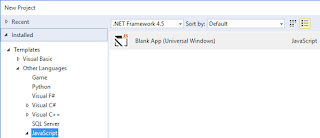
You have installed or upgraded to Windows 10 and now you want to develop apps for Windows 10. With Windows 10 you need to develop it once and you can deploy to various devices. However to do this you need to get ready with 'developer mode'. This post shows how. Launch Visual Studio 2015 Community. Create a blank Universal Windows app using Javascript template in VS Community 2015. DojoUW00.png You may get this message if it is not in developer mode. In which case follow intructions on the message.   Developermode.png This is the folder structure of my Universal Windows project using the blank JavaScript template which I named it as DojoApp (I was planning to bring in Dojo Toolkit here but there are some problems). DojoUW-01.png Here is the default.html code:         DojoApp                                 Content goes her...