Posts

Showing posts with the label Button click

UWP: Event handler displaying an image from the Asset folder

Image
You may need to display an image stored in the asset of your UWP project from another control's event handler. Let us take the simple example of a button click event displaying an image stored in the project's Asset folder on the page. At a minimum we create a UWP Blank project. Then we add a StackPanel. In the StackPanel we place two named elements, a button and an image by providing the NAME property for the controls. We bring in an external image into the Asset Folder using: Since we configured a click event in the XAML, this BTN_Click event code will be present in the MainPage.xaml.cs as shown. We create an instance of Image as a new image. The source for this image has to change from System.Uri to Windows.Foundation.Uri that UWP requires and hence the conversion.  However, code needs fixing, and there is a fix with a link. You can safely click this to modify. This includes a new using reference ( using Windows.UI.Xaml.Media.Imaging ) a...
Event Code: UI design with XAML in Visual Studio 2017 - 2

Image
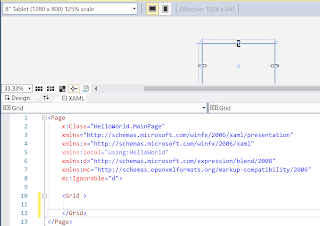
I assume you have followed me with this post here: http://hodentekhelp.blogspot.com/2017/12/how-do-i-configure-button-in-xaml.html After reading the above you will see that you start with an empty project whose code is shown here: WinPhoneStep1 In the final step you will have achieved this: WinPhoneStep11 This project when deployed will just show a button as in the above and nothing more: WinPhoneStep13 Writing code for a click event of this button. Let us first give a name for this button, like ClickMe . When you highlight the button in the design by clicking it, the Property pane opens where you can write the name you want as shown. winPhoneStep20 In the XAML code the Button gets a qualifier x:Name="ClickMe" as shown here: Now enter the Click event to the code by just enter "cl" after a space as shown and the intellisense kicks-in showing your options as shown. winPhoneStep22.png You pi...