Posts

UWP: Navigation using SplitView

Image
SplitView has two panes and in one of them you place items that allow you to navigate to the details of that item and its contents. You can basically use some event handlers to the items and when the event occurs, you display the content for the item. Here is the scheme for navigation: SplViewNav_0 You have three objects in the SplitView pane (Rose, Jasmine, Lily). You attach events to these objects and when the event is fired, you display the related content in the area on the right, the Content. Before you read this post, please make sure you read the two following posts: Displaying image in the Assets folder: http://hodentekhelp.blogspot.com/2018/03/how-do-i-display-using-code-image-from.html Navigation with SplitView: http://hodentekhelp.blogspot.com/2018/03/how-do-you-use-splitview-xaml-control.html Description of App in xaml designer Start with a UWP Blank project and provide a name. In this it was named JSplitView . The code for MainPa...

Using XAML's SplitView

Image
You can get a basic start with the SplitView Control here . There is no TabView in XAML. You could replace the default 'grid' in a Blank UWP project shown here: DefaultBlank.png Use the following in its place: SplitView sample.png This is ready for build. Build and run the app in the Local Computer. This is what you see when the app is run. There is a Pane, the SplitView. Pane and there is a TextBlock named ' Content ' in the Grid. Now I change the OpenPanelLenth (presently 296) to, say 150 and build and run the app. What do I see? SplitView 2 Basically you can now see more content. In the 'Pane' you can place controls and hook up events to them to display related 'Content' in the Content (i.e., inside the 'grid' control). I will show an example in my next post.

UWP: Event handler displaying an image from the Asset folder

Image
You may need to display an image stored in the asset of your UWP project from another control's event handler. Let us take the simple example of a button click event displaying an image stored in the project's Asset folder on the page. At a minimum we create a UWP Blank project. Then we add a StackPanel. In the StackPanel we place two named elements, a button and an image by providing the NAME property for the controls. We bring in an external image into the Asset Folder using: Since we configured a click event in the XAML, this BTN_Click event code will be present in the MainPage.xaml.cs as shown. We create an instance of Image as a new image. The source for this image has to change from System.Uri to Windows.Foundation.Uri that UWP requires and hence the conversion.  However, code needs fixing, and there is a fix with a link. You can safely click this to modify. This includes a new using reference ( using Windows.UI.Xaml.Media.Imaging ) a...

Pivot Control in a Universal Windows Project

Image
Pivot control with its tabs helps you in navigating between items which can be content panes. Each item has a header to provide the text for the tab. The Pivot has a title and is the container of PivotItems. The following 3 images show the navigation between three items.     In this app, the Pivot title is: Navigating with Pivot. The first PivotItem header is 'Home', the second PivotItem's header reads 'English' and the third PivotItem's header is 'Spanish'. I have some text in English in the PivotItem with header 'English' and similarly a translation of the English text to Spanish in the PivotItem for Spanish. You can go from one page to the other easily. The images are from a deployment to a Lumia 950 phone. Home is the first PivotItem in the app:  Now navigated to English Now navigated to the 'Spanish' Now the code is very simple and uses only XAML statements Here is the MainPage.xaml: Note: Although th...

Examples of types of content for controls in UWP

Image
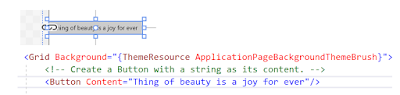
Content of Controls follow this inheritance order: DependencyObject      --->UIElement        --->FrameworkElement          --->Control           ---->ContentControl Content property of a ContentControl can any of: string UIElement DateTime Controls such as BUTTON, CHECKBOX and SCROLLVIEWER inherits directly or indirectly from the CotentControl Class When UIElement is set as Content property then the UI is displayed in the ContentControl. When Content property is string or DateTime, a string representation of the object is displayed in the Control. Here is a object whose Content is a string. The BUTTON's content is a string. ContentString.png Here are UIElements that are the Content of a Control  A Rectangle object is the content of a Button. ContentUI_0 A TEXTBOX is the content of this BUTTON ContentUI_1 A BUTT...

What emulator with what version of Visual Studio 2017?

Image
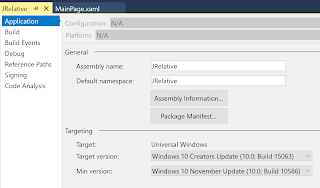
This is not always clear. It took a while to figure out this thing. I had Visual Studio 2017 Version 15.5.4 and ran into some design time problems as described in my post. Following this question taking a suggestion from Stack Overflow, I installed Visual Studio 2017 15.5.6 skipping the suggested 15.5.5. It did help me to avoid the design time problem for a UWP project I was working on. I also updated it to version 15.5.7. When I tried to view my app on an emulator, I did not find an emulator having used the latest version of Visual Studio in the deployment configuration. . Earlier I did not have this is problem before the upgrade. Every time , I try to use an emulator to look at my app, I am lead to a Microsoft site for downloading an emulator. According to UWP Forum on MSDN, there is no hard and fast rule for, ' What emulator with What version of Visual Studio 2017 '. It is more to do with the version you are targeting and the build. You can find this kind of i...

Race is on for more cameras on Smart Phones

Nokia with HMD Global is setting the stage for a Smart Phone with 5 cameras in a circular format supported by two LED flash. Nokia will probably announce this on Feb 15th ahead of MWC 2018 global event (Barcelona on February 25). According to this site , "Multiple reports suggest that HMD Global will launch Nokia 9 and Android Oreo (Go Edition) based Nokia 1. Apart from these two phones, the company is also said to launch the Nokia 4, Nokia 7, Nokia 8 (2018) and the 4G LTE-enabled model of the Nokia 3310 feature phone" Huawei is rumored to follow (with P-20 phone) next this band wagon.